Fire TV Stick
IPTV on a Fire TV Stick, without the slowdowns
A Fire TV Stick is one of the simplest ways to bring an old TV up to date. It is also a tiny computer with limited memory, which explains most of the trouble people run into. Here is how to set it up and keep it quick.
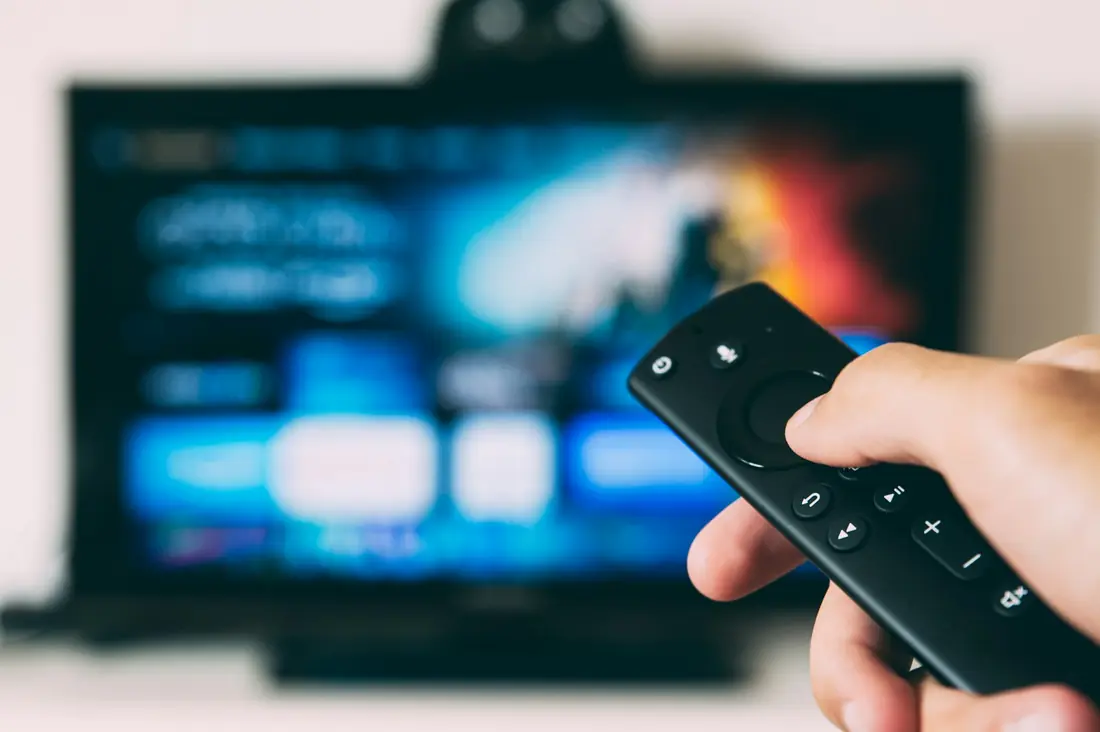
Setup
Plug it in properly
Use the power adapter in the box, not the TV's USB port, which often supplies too little power.
Install a player
Search the Amazon Appstore from the home screen for the player we suggest for your model.
Enter your login
Add a new profile or playlist. The remote keyboard is slow, so take your time and check capital letters.
Check it at peak time
Try a live channel in the evening. If it stutters, go to the fixes on this page.
If it slows down or buffers
Free up storage
Uninstall apps you don't use, then clear the cache of your player under Settings > Applications.
Restart it
Hold Select and Play together for a few seconds, or unplug it for a minute.
Move it
Behind the TV is a tough place for Wi-Fi. A short HDMI extender can move it into cleaner air.
Wire it
An Ethernet adapter gives the stick a cabled connection, and is often the best few dollars you can spend.
Which stick should you get?
If you are buying new, choose a current model rather than the cheapest older one, since live TV apps benefit from extra memory. Pick a 4K model if your TV supports 4K. If you already own a stick, try it first: there is no need to buy another until you know you have to.
Skip the "jailbroken" sticks
Sticks sold as "jailbroken" or "fully loaded" are a security risk and often come with unauthorized content. A normal stick and an official app are all you need.
Device and platform names belong to their owners and appear here only to say what the service runs on. Beast IPTV is not affiliated with or endorsed by them.
Help with my stick